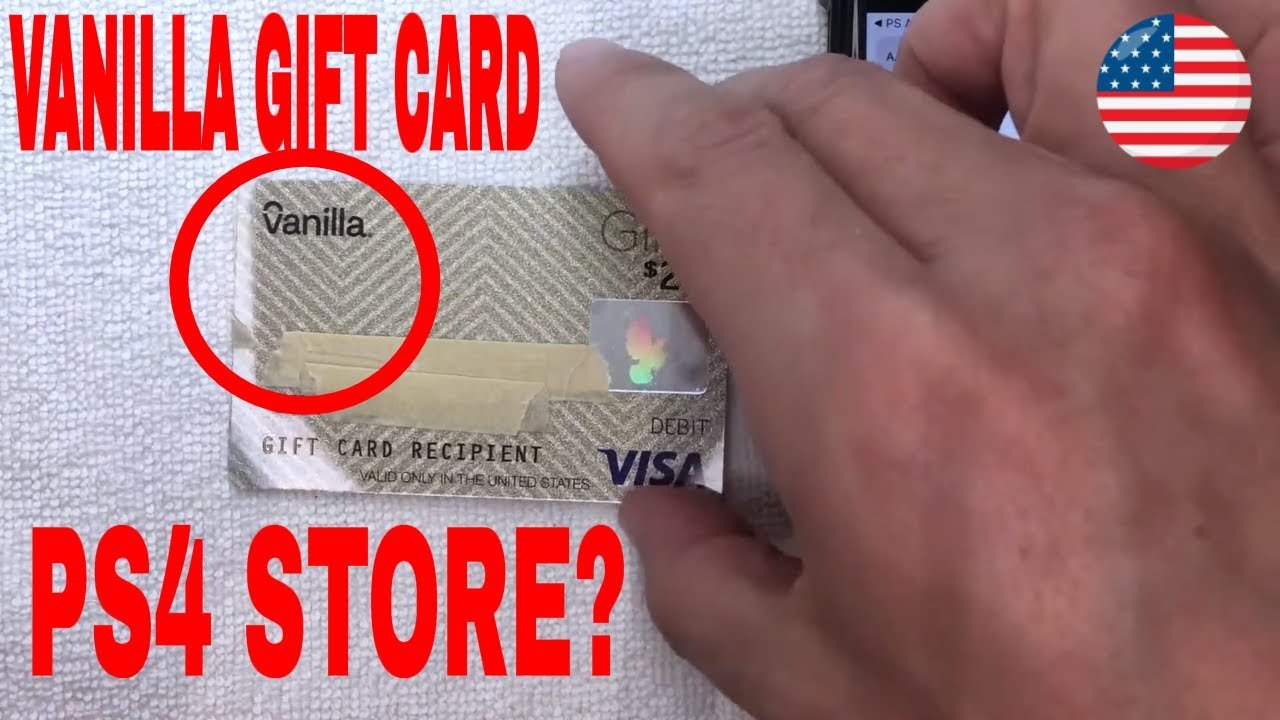

Are you ready to enhance your gaming experience on your PS4? Adding a Visa gift card to your account can unlock a treasure trove of games, add-ons, and exclusive content.
It’s an easy way to manage your spending while enjoying all that the PlayStation Store has to offer. If you’ve got a Visa gift card and aren’t sure how to use it, you’re in the right place. This guide will walk you through every step, making the process simple and stress-free.
Stick around to discover how you can quickly add funds to your account and dive into a world of gaming possibilities!
Setting Up Your Visa Gift Card
Adding a Visa gift card to your PS4 is simple. It lets you buy games and add-ons easily. Follow these steps to set it up correctly.
Check The Balance On Your Card
Before adding your Visa gift card, check the balance. This ensures you have enough funds. Visit the card issuer’s website or call their number. Input your card details to see your balance. Make sure the amount covers your planned purchases.
Register The Card Online
Next, register your Visa gift card online. This step is crucial for verification. Go to the card issuer’s site. Look for the registration section. Fill in the required details, such as your name and address. This helps in linking your card to your PS4 account.
Verify Billing Address Information
After registering, verify your billing address. The address must match the one used during registration. Go to your PS4 settings and find the account management section. Update your billing address if needed. This step avoids issues when making purchases.

Credit: www.youtube.com
Adding The Card To Your Ps4 Account
Adding a Visa gift card to your PS4 account is simple. First, go to your account settings. Then, select the option to add a payment method and enter your card details. This allows you to purchase games and add-ons easily.
Adding the Card to Your PS4 Account
Adding a Visa gift card to your PS4 account can open up a world of gaming possibilities. Whether you’re looking to buy the latest game, download exclusive content, or purchase in-game items, having the right payment method is essential. Follow these simple steps to get started.
Access The Payment Settings
First, power on your PS4 and navigate to the home screen. From there, go to your profile icon in the upper right corner.
Next, scroll down to “Account Management” and select it.
Once inside, look for the “Account Information” option. Here, you’ll find “Wallet,” where you can manage your payment methods.
Select Add A Payment Method
In the Wallet section, choose “Add Funds” to access payment options.
You will see a prompt that says “Add a Payment Method.” Click on it to continue.
This is where you can add your Visa gift card, so be ready to input your card details.
Enter Visa Gift Card Details
Now, it’s time to enter your Visa gift card information. You’ll need to provide the card number, expiration date, and the security code found on the back.
Make sure to double-check your entries for accuracy. Any mistakes could prevent the card from being added successfully.
After entering the details, click “Next” to finalize the process. You’ll receive a confirmation message if everything goes smoothly.
If you encounter issues, consider checking your card balance or contacting the card issuer.
What games will you treat yourself to first with your new payment option? The possibilities are endless!
Troubleshooting Common Issues
Adding a Visa gift card to your PS4 can sometimes lead to issues. Common problems include error messages or the card not being recognized. Troubleshooting these issues can help you enjoy your gaming experience without interruptions.
Adding a Visa gift card to your PS4 should be a straightforward process, but sometimes things don’t go as planned. If you encounter issues like card declines or mismatched addresses, don’t worry. This section will help you troubleshoot these common problems so you can get back to gaming in no time.
Card Declined Errors
Experiencing a card decline can be frustrating.
First, check the card’s activation status. If it’s not activated, it won’t work.
Make sure you’ve entered the card number, expiration date, and CVV code correctly.
Also, verify that the card is indeed a Visa gift card. Some prepaid cards may not be accepted.
If the card is still declining, consider contacting the card issuer. They can clarify if there are any restrictions or issues.
Address Mismatch Problems
Address mismatches can lead to failed transactions.
Ensure that the billing address you entered matches the address linked to the gift card.
If you received the card as a gift, ask the giver for any details they might have about the address.
Sometimes, small mistakes like typos can cause big problems. Double-check every part of the address.
Updating your profile address on your PS4 may also resolve these issues.
This step ensures that all your information is consistent across platforms.
Insufficient Balance Solutions
Running into insufficient balance issues can put a halt to your gaming plans.
Start by checking the remaining balance on your Visa gift card.
You can usually find this on the card issuer’s website or by calling their customer service.
If you don’t have enough funds, consider using the card for smaller purchases or loading it with additional funds if that option is available.
To avoid future balance issues, keep track of your spending.
Create a simple log or use an app to monitor how much you’ve used and how much remains.
Have you faced any of these issues while trying to add your Visa gift card? Share your experiences in the comments!

Credit: www.tiktok.com
Making Purchases With Your Gift Card
Using a Visa gift card on your PS4 can enhance your gaming experience. You can buy games, downloadable content, and more. This section will show you how to make the most of your gift card.
Buying Games And Dlcs
To buy games, start from the PlayStation Store. Browse the selection of games. Find the game you want to purchase. Select it and choose the option to buy.
During checkout, you will see a payment option. Choose to use your wallet balance. If your gift card is added correctly, the balance will reflect. Confirm the purchase to complete the transaction.
Using The Wallet Balance
Your wallet balance is easy to manage. After adding your Visa gift card, it becomes part of your wallet. Use this balance for future purchases.
To check your wallet balance, go to your account settings. This helps you know how much you have left. Use it wisely to enjoy more games and DLCs.
Tracking Your Transactions
Tracking your purchases is simple. Go to your account settings again. Find the transaction history option.
This shows all your recent purchases. You can see what you bought and how much you spent. Keeping track helps you budget your future gaming.
Tips For Using Gift Cards On Ps4
Using gift cards on your PS4 can be simple. Following some tips can make the process easier. Here are key points to help you use your Visa gift cards effectively.
Avoiding Transaction Fees
Transaction fees can eat into your gift card balance. Always check if there are fees before use. Some retailers charge a fee for using gift cards. Look for options that do not charge extra. This way, you keep more of your money for games and content.
Combining Multiple Gift Cards
You can use more than one gift card at a time. This is helpful if your card has a low balance. Combine cards to pay for larger purchases. Enter each card’s code during checkout. This process is quick and easy.
Monitoring Expiration Dates
Gift cards often have expiration dates. Check the date on your card. Use the card before it expires. If you wait too long, you may lose your balance. Keeping track ensures you get the full value of your card.

Credit: www.tiktok.com
Frequently Asked Questions
How Do I Redeem A Visa Gift Card On Ps4?
To redeem a Visa gift card on your PS4, first, ensure it’s activated. Go to the PlayStation Store and select “Redeem Codes. ” Enter the card number and follow the prompts. Your funds will be added to your wallet, allowing you to purchase games and add-ons easily.
Can I Use A Visa Gift Card For Playstation Plus?
Yes, you can use a Visa gift card to purchase a PlayStation Plus subscription. Simply redeem the card on your PS4 wallet. Once the funds are available, navigate to the PlayStation Plus section and select your desired subscription plan to complete the purchase.
Are There Any Fees For Using A Visa Gift Card On Ps4?
Generally, there are no fees for using a Visa gift card on PS4. However, check if your card has any activation or maintenance fees. Be aware that some retailers may charge fees when purchasing the card itself.
What If My Visa Gift Card Balance Is Low?
If your Visa gift card balance is low, you can still use it on PS4. However, ensure that your purchase total is less than or equal to the remaining balance. You may need to cover any remaining amount with another payment method.
Conclusion
Adding a Visa gift card to your PS4 is simple and quick. Follow the steps outlined in this guide. Enjoy your favorite games and content without hassle. This method lets you manage your spending easily. Remember to check your balance regularly.
Using a gift card can enhance your gaming experience. It opens up new possibilities for fun. Take control of your purchases today. Get started with your Visa gift card now. Happy gaming!