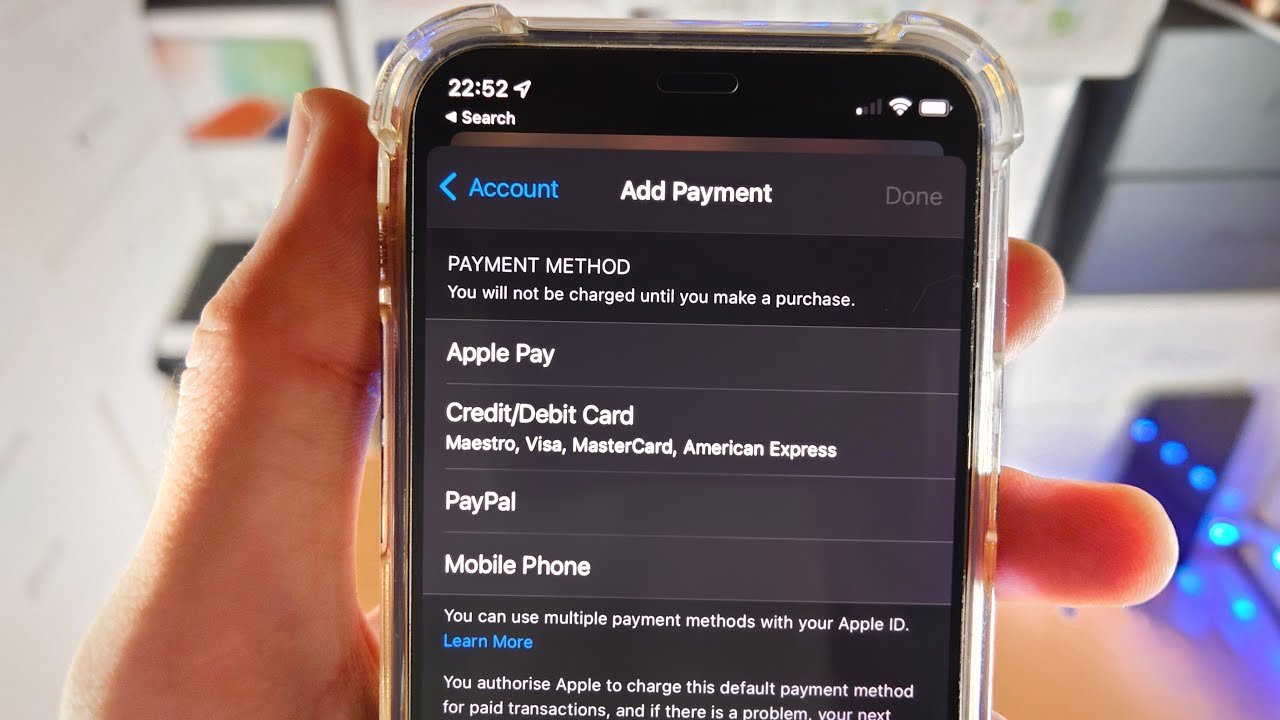

Have you ever received a Visa gift card and wondered how you could easily use it with your iPhone? Imagine the convenience of having all your payment options right at your fingertips, ready to go whenever you need them.
Adding your Visa gift card to your iPhone can transform how you manage your spending, making every purchase as simple as a tap on your screen. Whether you’re eyeing a new app, shopping online, or paying in-store, integrating your gift card into your iPhone can make transactions smoother and more efficient.
Intrigued? Stick around to learn the simple steps that will unlock this convenience for you, ensuring you’re never left fumbling for your card again.

Setting Up Your Iphone
Update your iPhone to the latest iOS version. This keeps your device safe and fast. Go to Settings, tap General, and then Software Update. If an update is available, tap Download and Install. Wait for the update to finish. Your phone will restart automatically. Make sure your iPhone is connected to Wi-Fi. This avoids extra data charges. Updates can be big, so use Wi-Fi.
Not all iPhones work with Visa gift cards. Check if your phone is compatible. Older models might not support this feature. Visit Apple’s website for a list of compatible devices. Use Apple Pay to add cards. Newer iPhones have Apple Pay. If your phone is too old, you might need a new one. Compatibility is key for smooth operation.
Adding Visa Gift Card To Apple Wallet
First, find the Apple Wallet app on your iPhone. It looks like a colorful stack of cards. Tap on it to open. Make sure your iPhone is updated. This helps the process run smoothly.
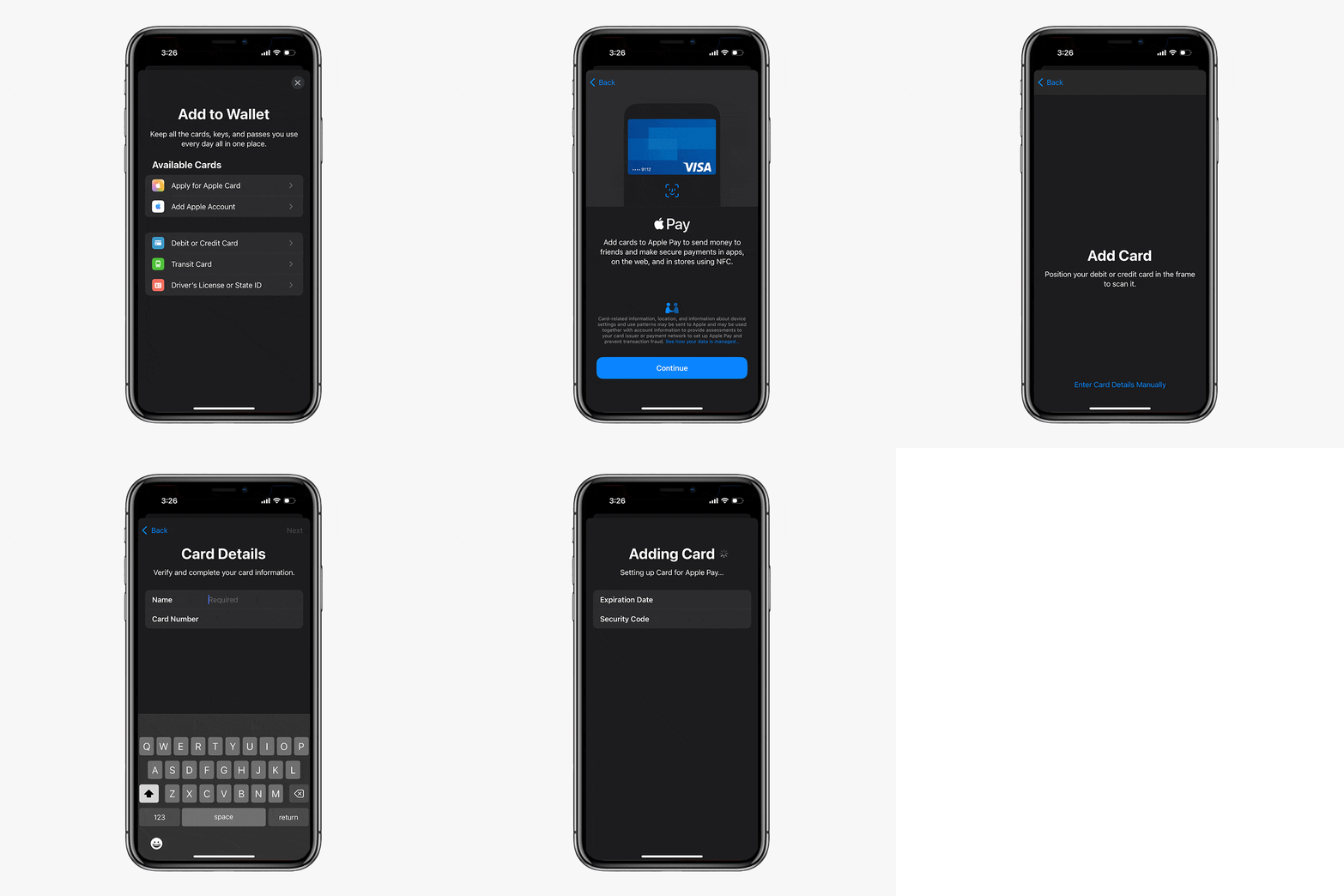
Inside the app, look for the plus sign. It is usually at the top right corner. Tap it to add a new card. Choose the Credit or Debit Card option. This is where you will add your Visa Gift Card. Follow the on-screen instructions. They will guide you step by step.
Entering Card Details
Open the Wallet app on your iPhone. Tap on the plus sign to add a new card. You can scan the card using your phone’s camera. The app will read the card number and expiry date. If scanning doesn’t work, you can enter the card information manually. Make sure to type the correct card number, expiration date, and CVV code. Double-check each number to avoid mistakes.
Check all the details you entered. Ensure your card number matches the one on your Visa gift card. Verify the expiration date and CVV code too. If everything is correct, tap “Next” to proceed. Your iPhone might ask for additional verification. Follow any on-screen instructions. This step ensures your card is ready for use.
Verification Process
Receive Verification Code on your phone. Check your messages for the code. The code is usually six digits. Keep this code safe and handy. You will need it in the next step.
Enter Code to Confirm your Visa gift card. Open the app on your iPhone. Find the spot to enter the code. Type the digits carefully. Make sure they match exactly. This confirms your Visa gift card. Now your gift card is ready to use.
Using Visa Gift Card
Visa Gift Cards are easy to use. Just like regular cards. Swipe the card at the store. Enter the card details. Remember to check the balance first. Keep track of your spending. Gift cards have limited money. The cashier might ask for a PIN. Use the one on the card. Always keep the card safe.
Shopping online with a Visa Gift Card is simple. Enter the card number. Fill in the expiration date. Input the CVV code. You find this on the back. Make sure the card has enough money. Some sites ask for billing info. Use the address linked to the card. Check your balance often. It helps avoid declined payments.
Troubleshooting Common Issues
Adding a Visa gift card to your iPhone can sometimes present challenges. Ensure your device is updated and connected to the internet. Verify the card details and check compatibility with Apple’s payment system for a smooth setup.
Card Not Accepted
Your card might not work. Check if the card is activated. Ensure you have enough balance. Confirm your card details are correct. Keep your card information safe. Try again with correct details.
Verification Problems
Sometimes there are verification issues. Make sure your phone is connected to the internet. Double-check your card numbers. Ensure your phone’s software is updated. Restart your phone and try again. Check if your card issuer is supported.
Contacting Support
If issues persist, reach out to support. Visit the card issuer’s website for contact details. Call their support number. Explain your problem clearly. They can assist you. Keep your card details ready when calling.
Frequently Asked Questions
How Do I Add A Visa Gift Card To Iphone?
To add a Visa gift card to your iPhone, open the Wallet app. Tap the “+” icon to add a new card. Select “Credit or Debit Card,” then use your camera to capture the card details or enter them manually.
Follow the prompts to complete the setup.
Can I Use Visa Gift Card With Apple Pay?
Yes, you can use a Visa gift card with Apple Pay. First, add your Visa gift card to the Wallet app. Follow the prompts to complete the setup. Once added, use Apple Pay to make purchases at compatible stores.
Why Won’t My Visa Gift Card Work On Iphone?
If your Visa gift card doesn’t work, check the balance. Ensure it is activated and has sufficient funds. Also, verify that you entered the card details correctly. Some merchants might not accept gift cards, so check their policies.
Is Visa Gift Card Compatible With All Apps?
Visa gift cards are generally compatible with most apps that accept credit or debit cards. However, some apps may have restrictions. Always check the app’s payment options and policies to ensure compatibility before attempting to use your gift card.
Conclusion
Adding a Visa gift card to your iPhone is simple. Follow the steps mentioned above. Enjoy easy payments and seamless transactions. Remember to check your card balance regularly. This helps in avoiding declined transactions. Keep your iPhone updated for smooth functioning.
Always ensure your card details are correct. This ensures a hassle-free experience. With these steps, manage your gift card effectively. Enjoy the convenience of digital payments. Embrace the ease of technology. Now you are ready to shop with ease. Happy spending!